Track
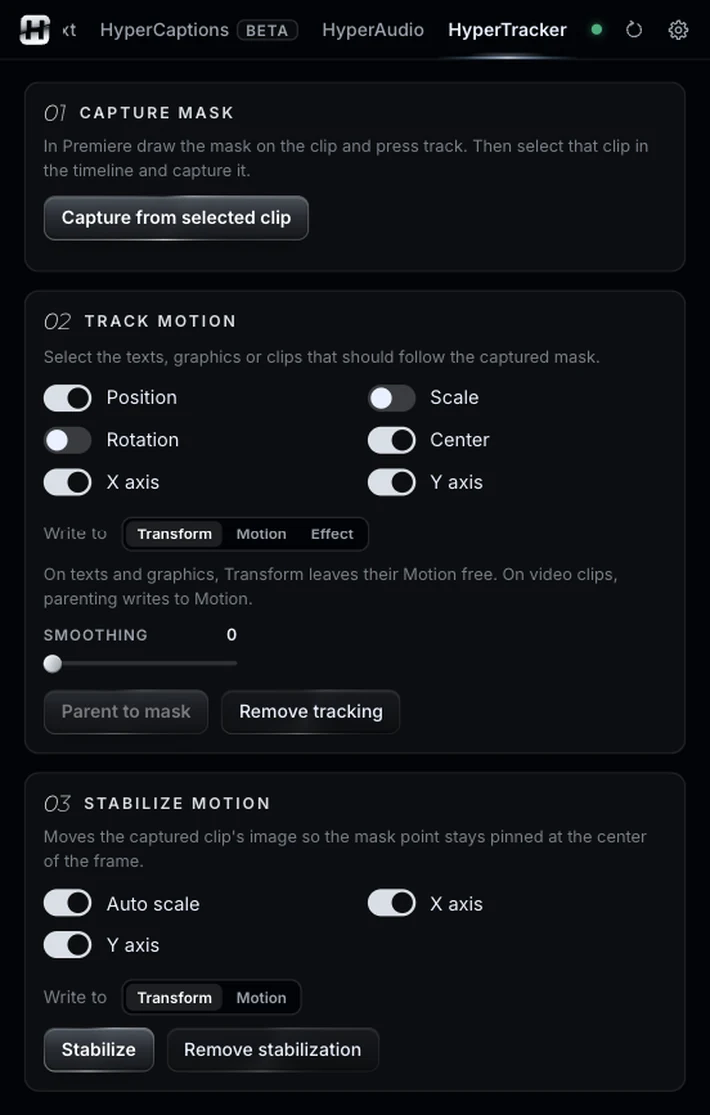
The text, graphic or clip you choose follows the mask in position, scale and rotation, smoothed to remove jitter. It writes to its own Transform effect, so the text’s Motion stays free for your tweaks.
Or make a shaky shot sit still on one point. It starts from Premiere’s own mask tracking.
Illustrative animation. Pause it with the button at the bottom right.
Sound familiar?You want a name to follow someone as they walk.
Premiere tracks masks, but won’t let you pin text to them. And stabilizing a handheld shot on one specific point is another fight.
HyperTracker reads that tracked mask and turns it into movement for something else: a name that follows a person, a label stuck to a product, a blur that follows a face or a license plate.
Three ways to use a tracked mask.
The text, graphic or clip you choose follows the mask in position, scale and rotation, smoothed to remove jitter. It writes to its own Transform effect, so the text’s Motion stays free for your tweaks.
Moves the image so the mask point stays pinned at the center, with automatic scale so no black edges show.
The mask center can also move an effect’s point, like the center of a blur or a mosaic. Useful to blur a face or a license plate that moves.
Remove tracking and Remove stabilization put everything back.
One trick and the steps that go with it.
The trick: make a small circle on a high-contrast point, like an eye, a corner or a logo, and track it with Premiere’s masks. Defined details track far better than flat areas.
On the clip, draw a small elliptical mask over the point and track it forward.
A mask’s tracking can only be read from the project file.
Select the clip on the timeline and press Capture from selected clip. Choose the mask.
Select the texts, choose what they follow (position, scale, rotation, axes) and press Parent to mask. Or press Stabilize.
HyperTracker moves things. The rest of the panel dresses and corrects them.
Same panel, same license. Every tool works on its own and hands off to the next.
Edit by typing: one-cut summaries, topic clips, multicam podcasts.
02Captions you don’t have to redo, and text you can animate by hand.
03Animated captions inside Premiere, line by line and editable.
04Clean the voice, split the music, cut silences on the waveform.
06Split screens from your clips, without doing the math.
07The one-click buttons Premiere is missing.
08Your own sound library, placed right on the hit.
09Cinematic color, guided, loaded into Lumetri.
Nine tools.
One license.