Layers and effects
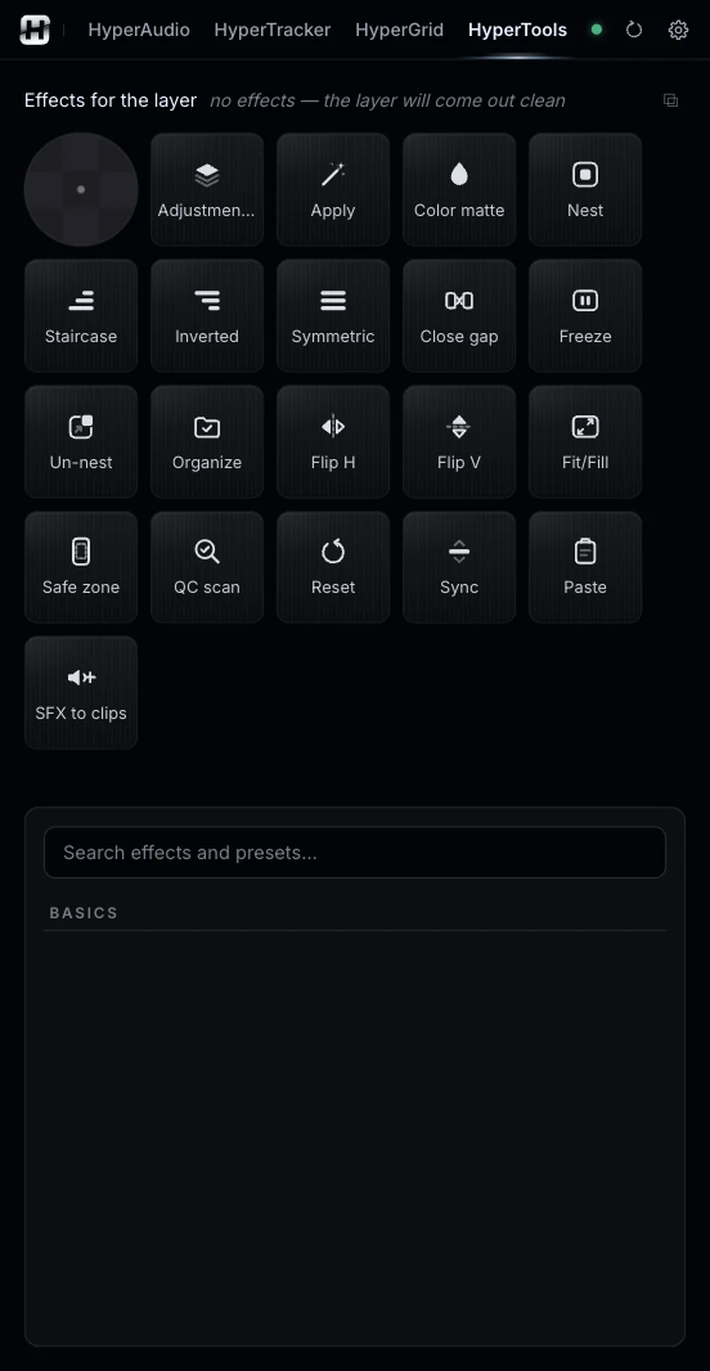
Adjustment layer creates layers with the effects and presets in your queue: click, one per clip; Shift, one over the selection; Cmd, a mini layer over each cut. Apply puts the queue straight on each clip. Color matte makes solids.
Everything you repeat fifty times a day, one click away, with a D-pad and a queue of your own effects and presets.
Illustrative animation. Pause it with the button at the bottom right.
Sound familiar?Small jobs, all day.
Creating an adjustment layer the exact size of the selection, flipping ten clips, freezing a frame, staggering texts, syncing two cameras by audio. None of this is hard in Premiere: it is slow, and it repeats all day.
HyperTools puts those tasks on a palette of buttons. Almost all of them have a variant with Shift, Alt or Cmd, and Reset undoes the last thing HyperTools did, step by step. Open it in its own window with the ⧉ button to keep it next to the timeline.
The palette, grouped by what you do.
Adjustment layer creates layers with the effects and presets in your queue: click, one per clip; Shift, one over the selection; Cmd, a mini layer over each cut. Apply puts the queue straight on each clip. Color matte makes solids.
Nest only what is selected and leave the nest in place; Shift asks for a name. Un-nest takes the clips back out, in their relative tracks.
Each clip on its own track: they keep their start and end together, the same upside down, or with identical start and end.
Sync aligns the selected clips by audio, like Premiere’s Synchronize. Close gap closes up the clips on each track; linked audio travels with its video.
Freezes the frame at the playhead as a PNG on the track above: 5 s, or to the end of the clip with Alt. Shift copies it to the clipboard.
Whatever is on the clipboard, at the playhead, on a free track above and without overwriting anything: an image (saved with the project, as a 5 s clip), copied files from the Finder, or a text, which comes in as HyperCaptions text with your chosen style. Reset removes it.
Moves every selected clip or graphic at once: 1% of the frame per click, 5% with Shift, corners for diagonals and the center to center. Alt+click duplicates in that direction. Cmd+Shift+click moves them on the timeline.
Flip H and V toggles. Fit/Fill toggles between filling the frame and seeing the whole image. Safe zone draws a Reels guide on top; remove it before exporting.
Select a sound and the clips that should get it: it is duplicated at the start of each one, as is, with its trim, level and fades.
BetaQC scan adds a red marker where the sequence goes black or has offline media. Organize sorts loose project items into color-coded bins and shows you the plan first.
Three small jobs that used to take a minute each.
Four stacked clips become a staircase, then inverted.
Select the four clips on the timeline.
Each clip goes to its own track, keeping its start and ending together. Inverted flips it.
Reset undoes the last thing HyperTools did.
Illustrative animation. Pause it with the button at the bottom right.
Grade or animate many clips at once.
Type in Search effects and presets… and queue what you want.
Click makes one per clip, Shift one over the whole selection and Cmd a mini layer over each cut, for transitions.
Apply puts the queue on each clip with no layers.
Illustrative animation. Pause it with the button at the bottom right.
A still, one click from the playhead.
Put it on the frame you want.
A 5 s PNG lands on the track above. Alt makes it run to the end of the clip. The original is untouched.
Illustrative animation. Pause it with the button at the bottom right.
HyperTools is the glue between the other tools.
Same panel, same license. Every tool works on its own and hands off to the next.
Edit by typing: one-cut summaries, topic clips, multicam podcasts.
02Captions you don’t have to redo, and text you can animate by hand.
03Animated captions inside Premiere, line by line and editable.
04Clean the voice, split the music, cut silences on the waveform.
05Make text follow whatever moves, or stabilize a shot.
06Split screens from your clips, without doing the math.
08Your own sound library, placed right on the hit.
09Cinematic color, guided, loaded into Lumetri.
Nine tools.
One license.