Skip to content
HyperPowers
01 · HyperChat

Type it.Watch it cut.

A chat inside Premiere that understands your transcript and can use the whole plugin. You type a normal instruction and it works on your real timeline.

Your real timelineLoads the transcript for youOne-cut summariesTopic clips + markersMulticam podcasts
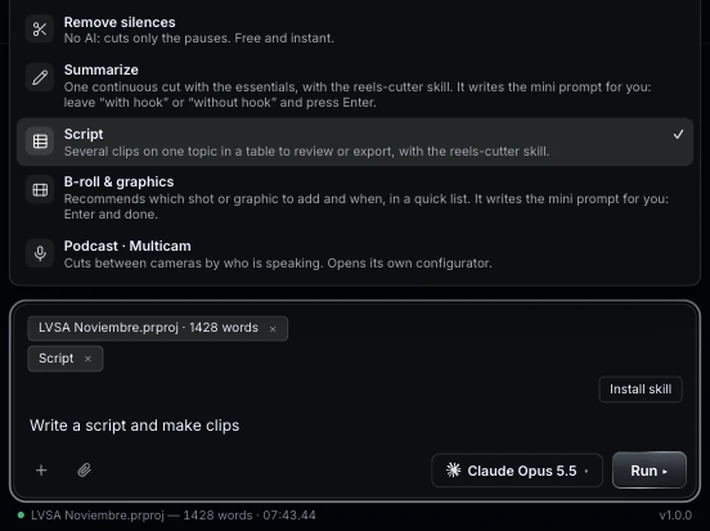
The HyperChat tab with its menu open: Remove silences, Summarize, Script, B-roll & graphics and Podcast · Multicam, and below them the chat box with the Run button.
Real panel screenshots, Premiere Pro 26.5, macOS.

The problem.

Sound familiar?You know what to cut, not where it is.

Scrubbing forty minutes of interview for the line where the guest talked about pricing is time nobody pays you for.

HyperChat works on the active sequence and loads its transcript on its own, Premiere’s or the plugin’s. You write a normal instruction and it carries it out, on your real timeline and with your clips.

Under the + button it also has five ready-made tools for what repeats most when you edit from a transcript.

What it does.

One box for open requests, plus armed tools in the + menu for the edits you repeat.

Talk to the whole plugin

Every button has its written command. HyperChat knows the actions of every tool and takes the values from what you type. It tells you what it will do before it does it, and why when something can’t be done.

Make a one-cut summary with a hookSplit the voice from the music in the selected clips3-word captions, no punctuation

Summarize

One continuous cut of up to 60 seconds with the lines that tell the story. Along the way it removes silences, filler words and repeated words, keeps the last clean take of each idea and only the interviewee’s voice. With or without a hook.

Script · topic clips

For interviews, podcasts and long videos with several topics. You get a table with a suggested title, duration, ranges and the transcript corrections it found. Approve, and every cut lands in Premiere with its title as a marker. Each clip brings its hook, ready to insert at the playhead. Download the script as .xlsx or .txt, and import the .xlsx later to rebuild the videos without spending AI again. It uses the reels-cutter skill that comes with the plugin.

All3510 clips

Podcast · Multicam

Name the speakers, say which camera shows whom and choose a pace. HyperChat cuts the camera tracks so you always see whoever talks. Audio untouched, or one mic per speaker cut with the camera.

PausedBalancedDynamic

B-roll & graphics

A quick list of where a shot or a graphic would help, and what kind. It recommends; it does not download footage.

Attach context

The transcript loads itself. Attach is for a .json transcript you exported or an .xlsx script you made earlier.

Your model

Claude through your Claude Code subscription, GPT through Codex, or any of them with your API key. You set it up once in Settings.
Work flows.

Three real jobs, with the buttons named as in the panel. Each animation shows what the timeline does.

Workflow 1

One minute of the best, in a single cut

A half-hour talk, and the client wants one minute of the best.

  1. 01

    Arm Summarize

    Press + › Summarize. The box fills with its mini prompt and leaves “with hook” or “without hook” selected for you to type over.

  2. 02

    Choose the hook

    With hook, the strongest line opens the cut and the rest follows in order. Without hook, it keeps the chronological order. Add a tweak if you want, for example “up to 90 s”, and press Enter.

  3. 03

    Review and build

    Check the cut in the chat: silences, filler words and repeated takes are already out. Build it in the sequence.

Full transcriptSummarize
Well, let's start at the beginning. The first time I got paid for a video, I charged almost nothing. Uh… I mean… I learned that the result sets the price, not the hours. the result, the result, I always tell that story in my workshops. Today I send the proposal before I open Premiere. Can you repeat the question? And the client decides with the value in front of them.
Summary · one cutup to 60 s

“The first time I got paid for a video, I charged almost nothing. I learned that the result sets the price, not the hours. Today I send the proposal before I open Premiere. And the client decides with the value in front of them.”

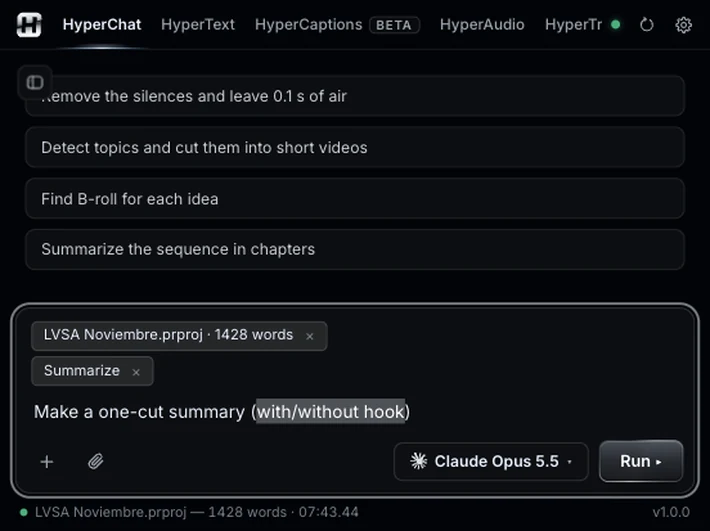
HyperChat with Summarize armed: the mini prompt is already in the box, with “with/without hook” selected, and the Run button next to the model.
Real panel screenshots, Premiere Pro 26.5, macOS.

Illustrative animation. Pause it with the button at the bottom right.

Workflow 2

Five reels from one long video

A one-hour podcast has ten reels inside. Finding them, titling them and cutting them by hand takes a whole afternoon.

  1. 01

    Arm Script

    Press + › Script and choose how many clips: All, 3, 5 or 10.

  2. 02

    Adjust the mini prompt

    For example “5 clips up to 45 s about pricing”, then press Enter. Sort the table by virality or by position and check the ones you want.

  3. 03

    Approve and build

    Approve all and build them: each cut lands in Premiere with its title as a marker. It also works on a multicam if cameras and audio are synced.

  4. 04

    Take the script with you

    Download it as .xlsx or .txt. If you import the .xlsx later with Attach, HyperPowers rebuilds the videos without spending AI again.

Podcast · 58 minHere's what I can build · 5 videos
TitleDur.Corrections
The mistake that almost cost me the business0:422
How I get clients without ads0:381
What nobody tells you about pricing0:513
My routine for editing faster0:290
The advice I'd give myself five years ago0:461
✓ Approve all⤓ Download script (.xlsx)⤓ Save .txt
The mistake…Clients…Pricing…Routine…Advice… Script 1Script 2Script 3Script 4Script 5
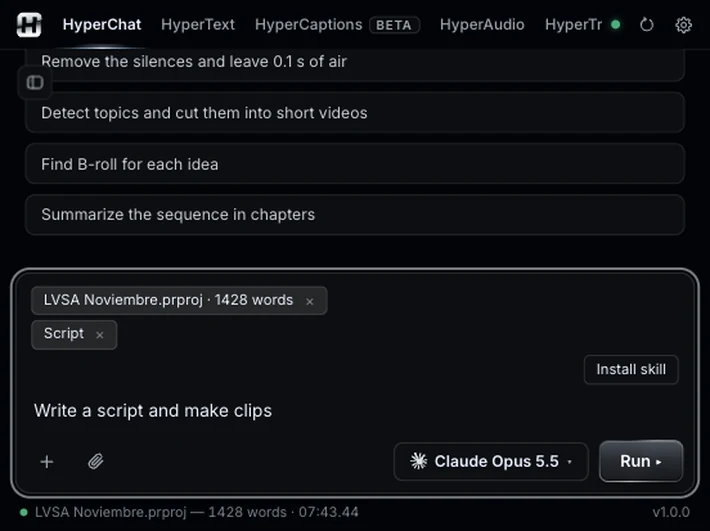
HyperChat with Script armed: the mini prompt in the chat box and the Install skill button above it.
Real panel screenshots, Premiere Pro 26.5, macOS.

Illustrative animation. Pause it with the button at the bottom right.

Workflow 3

A podcast that cuts itself, then the B-roll

Three cameras, two guests, an hour of conversation. Switching angles by hand on every turn is the most boring part.

  1. 01

    Get the sequence ready

    Sync the cameras and transcribe the sequence in Premiere, with speakers. The multicam relies on that transcript.

  2. 02

    Open the configurator

    Press + › Podcast · Multicam. Name the speakers, choose the track of each camera and who appears on it, and choose the audio: one audio for everything, or one mic per speaker with its track.

  3. 03

    Analyze and cut

    Choose the pace and press Analyze, then Cut. Undo cut brings everything back, audio included.

  4. 04

    Then, what goes on top

    Press + › B-roll & graphics for a list of the shots and graphics that would help, by moment. Add “graphics only” or “five at most” if you want.

Program Camera 2 · AnaCamera 3 · LeoCamera 1 · Wide
AnaLeoAnaBothLeo
LeoLeo
AnaAna
Wide
Transcript

When I started, I edited at night in the kitchen at home.

Today I follow three steps before opening Premiere.

And the most important thing is talking to the client before quoting.

Recommendations
00:38 · B-rollKitchen at night, laptop on, close-up of hands.
01:12 · GraphicThe three steps on screen, one by one.
01:57 · B-rollVideo call with a client, screen detail.

Illustrative animation. Pause it with the button at the bottom right.

Good to know.

It needs a transcript
Premiere’s own transcript of the active sequence (save the project first) or the local one from HyperText. HyperChat loads it by itself.
It uses your AI
Claude, GPT or Gemini, through Claude Code, Codex or your own API key.
Typing commands for other tools is new
Typed requests can trigger any button in the panel. It is recent and still being tested on real projects.
B-roll is a recommendation
HyperChat tells you which shot or graphic to look for. It does not download footage.
Multicam needs synced cameras
Sync cameras and mics first, and transcribe with speakers in Premiere.